

A worked onboarding
- Status
- Current
- Updated
- 2026-09-05
- Scope
- One complete run through provider onboarding on the API Platform
Becoming a provider tells you which steps exist. This page adds the other half: the state each step leaves you in, whether the next move is yours or a wait, and which states look stalled but are in fact normal.
It follows one real, complete onboarding, and so do the screenshots — none of them are
mockups. The identifiers match the placeholders in the platform's own forms
(acme.weather / primary.weather / weather.forecast); substitute your own.
The provider console itself is only available in Simplified Chinese, so that is what the screenshots show. Each caption says what you are looking at.
Three things that catch people out
The review gates are real and nothing crosses them automatically. Until your entity is active, the forms for creating a technical connection or a listing do not appear at all. There is no way around this, and you do not need one.
Publishing is not an action you can take. After your listing is approved you will see it sitting at "approved" with no public version. That is the correct state, not a stall.
Every decision comes back with its reason. When something is sent back or rejected, the reason is shown on that object's own page. You do not have to ask.
1. Create the provider entity
Fill in the identifier, display name and public business description, save the draft, then submit.
The identifier is immutable once created, unique platform-wide, and limited to lowercase letters, digits, dots and hyphens. It appears in the public catalog — name it after your external brand, not an internal codename.
The public description is the main basis for the review. Say plainly what you provide and where the data comes from. Specific claims move faster; vague ones only earn a "changes requested".
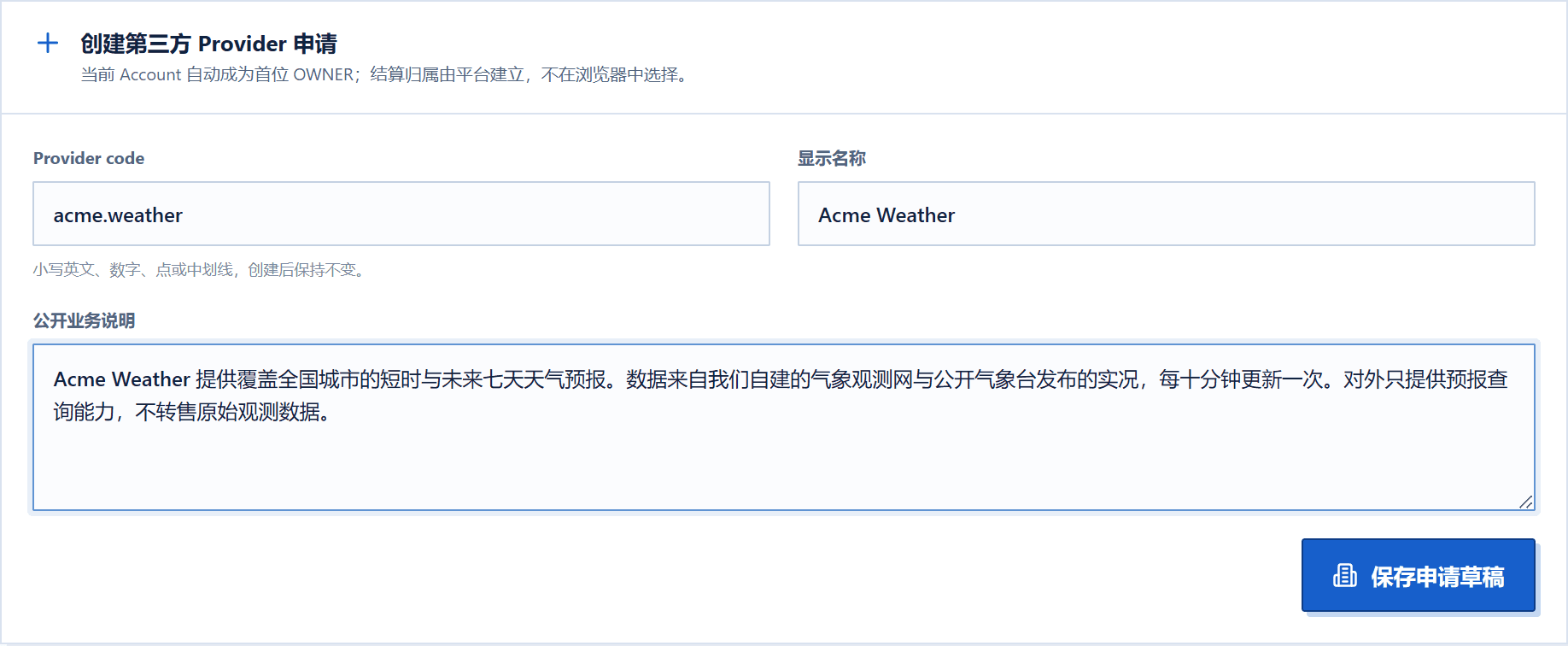
| State after submitting | Submitted |
| Next | Wait for the entity review outcome |
The submitting account automatically becomes the first OWNER. Settlement ownership is established by the platform and is not a field on the form.
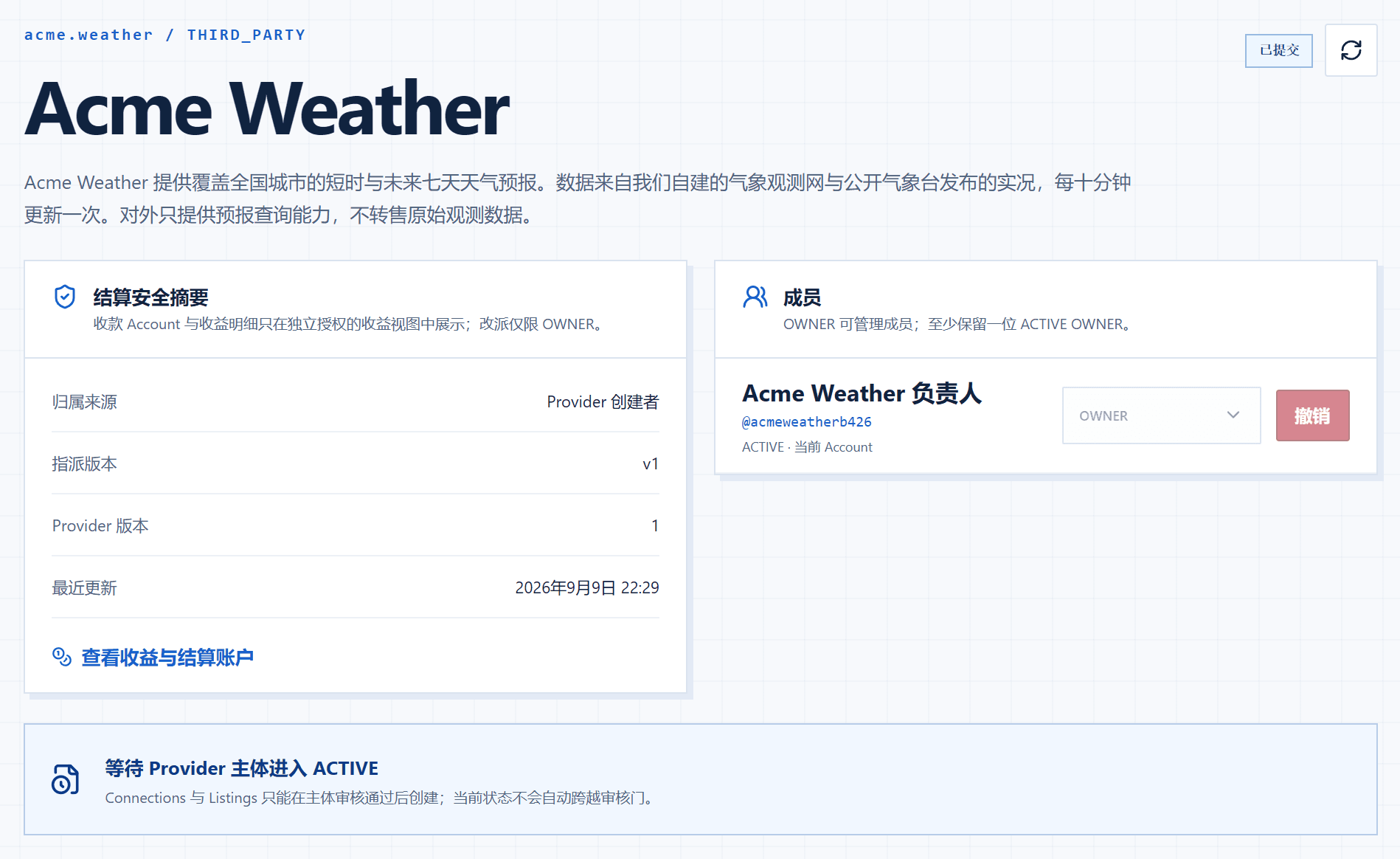
2. Wait for the entity review
When the state moves from "submitted" to "under review", the review has started.
| State once approved | Active |
| Unlocks | The forms for creating connections and listings |
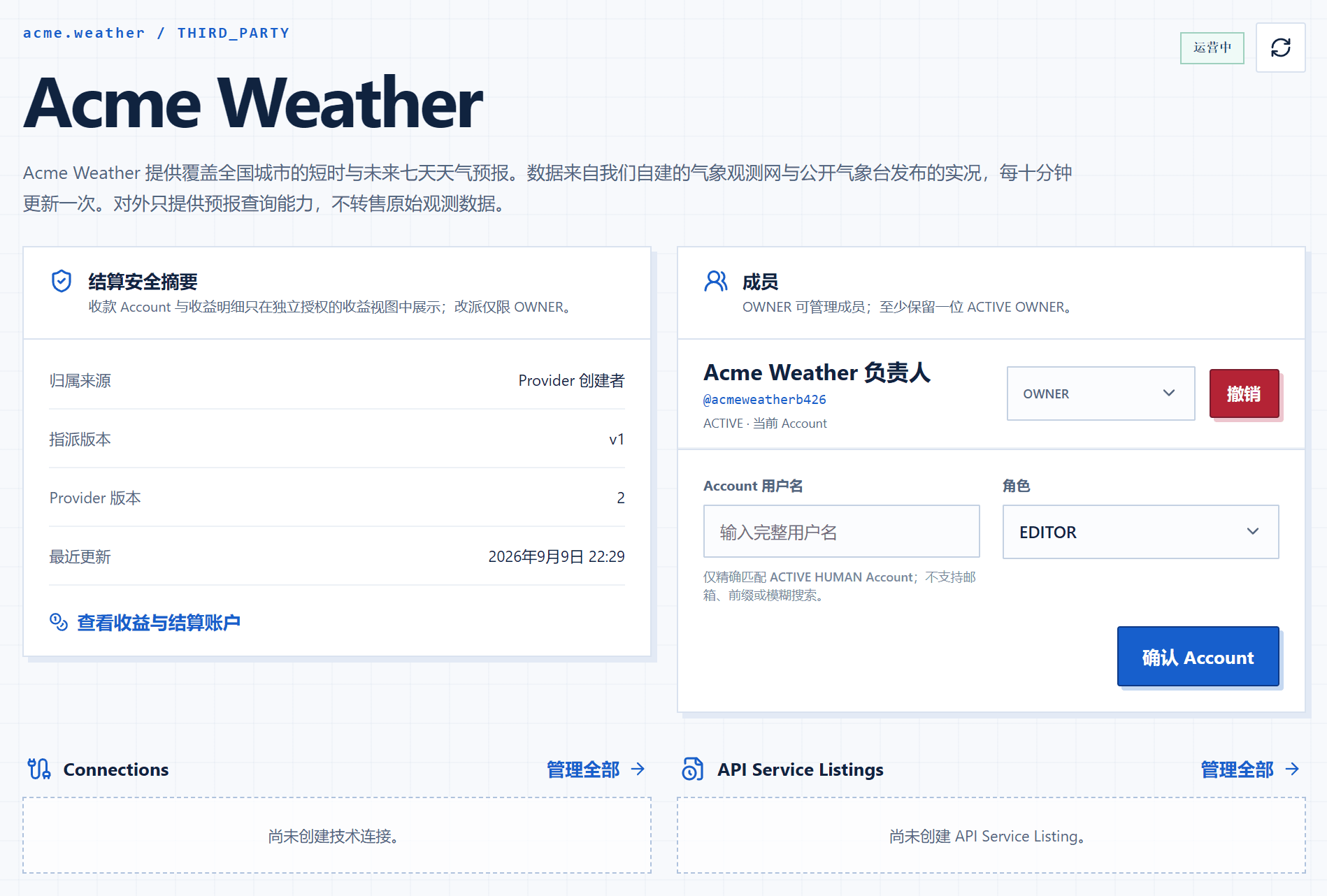
Approving the entity does not imply anything about your connection or listing. Those are two separate gates.
3. Create the technical connection
Fill in the connection identifier, display name, HTTPS address and access credential, then save the draft.
The address must be a public HTTPS origin: no path, query string, userinfo or custom headers, and no private-network exceptions. Execution and reconciliation paths, the adapter and the network policy are fixed by the platform — you cannot change them and do not supply them.
The credential is yours, not something the platform issues to you. Configure it on your own service first, then submit the same value here. The platform stores it encrypted and versioned, and no page ever shows it again. Rotation appends a new version; it does not overwrite historical bindings.
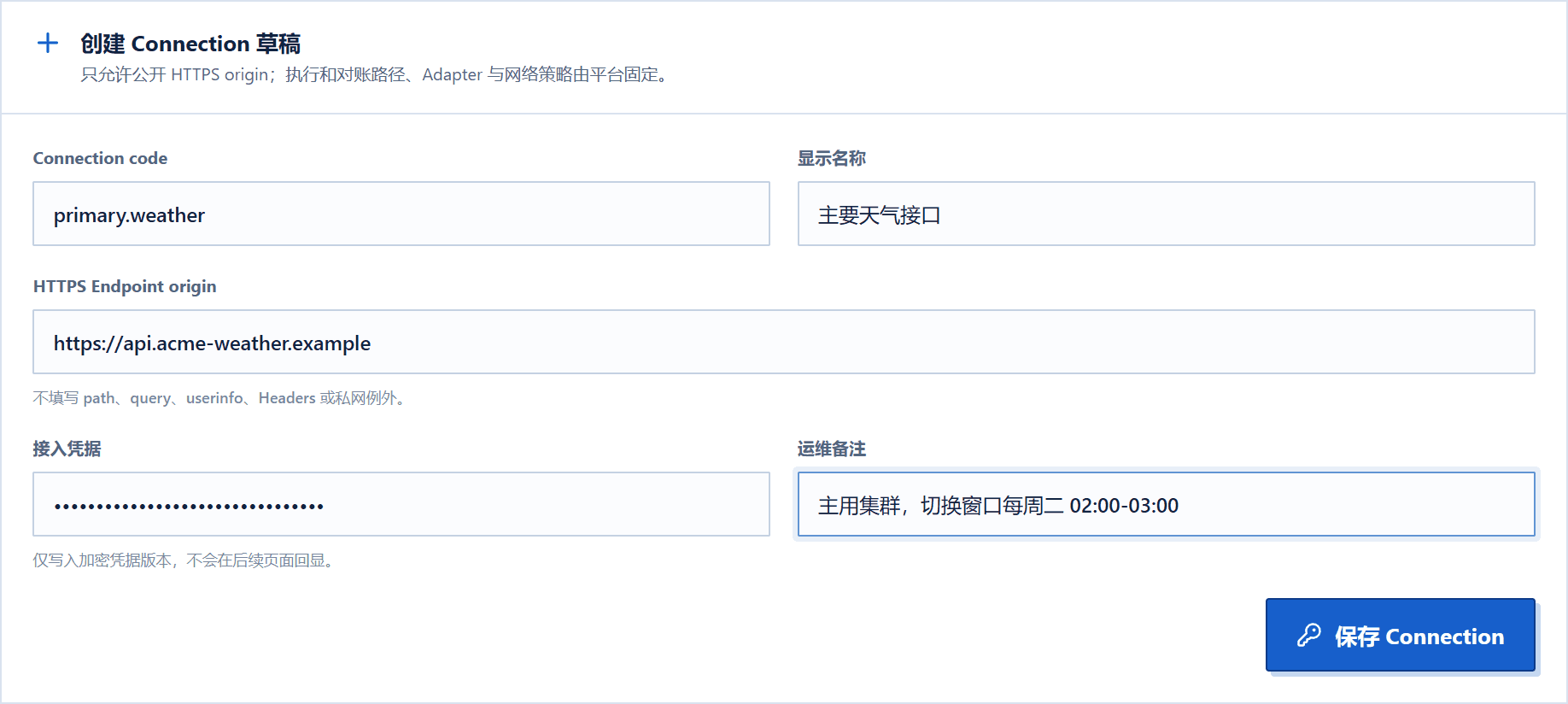
| State after saving | Connection draft |

4. Run the conformance check yourself
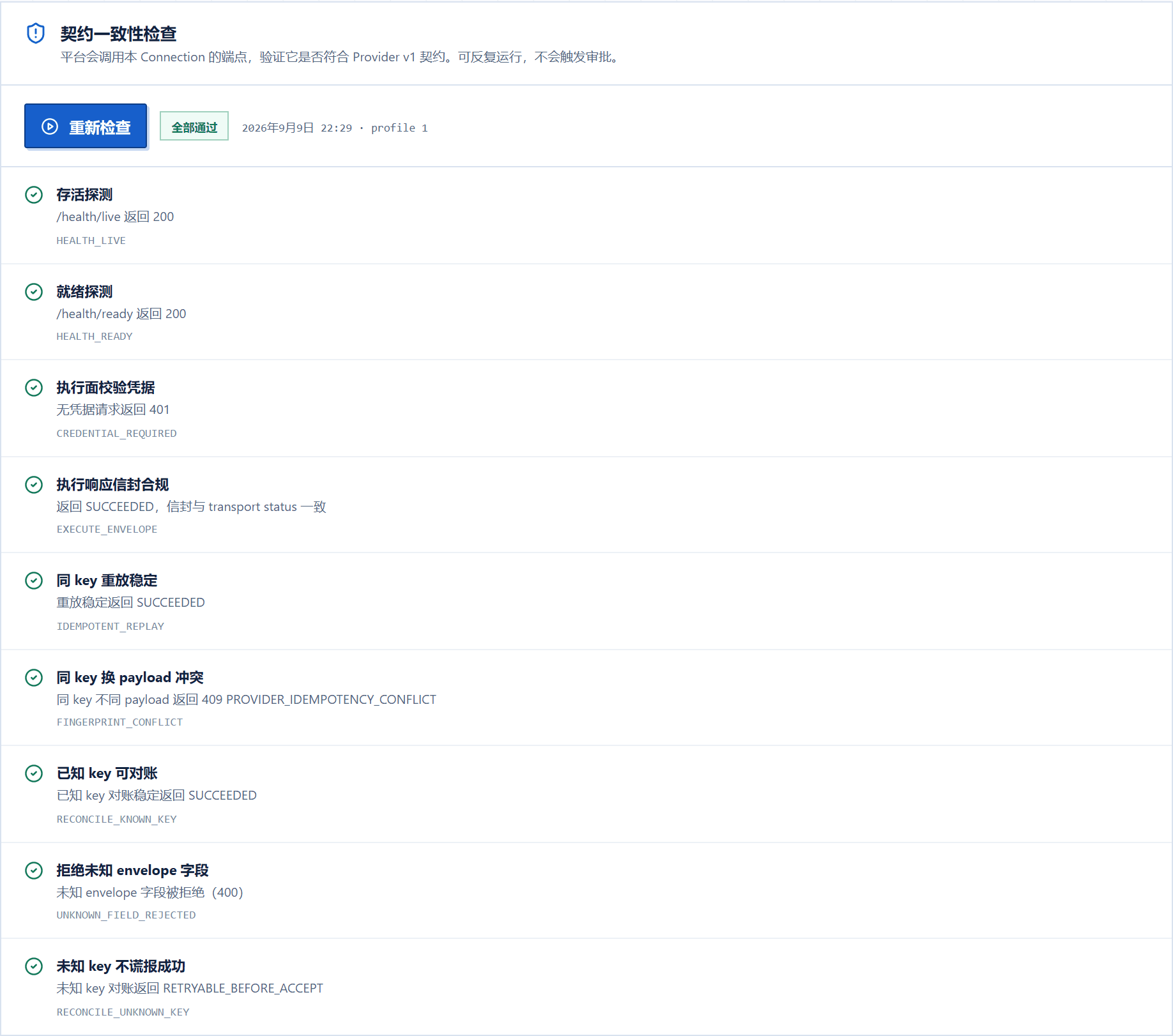
Do this before submitting for verification. The platform really calls your address and checks each item against the calling protocol. You can run it as often as you like; it triggers no approval and consumes none of your quota.
Nine checks:
| Check | Code | Expected |
|---|---|---|
| Liveness probe | HEALTH_LIVE | 200 |
| Readiness probe | HEALTH_READY | 200 |
| Execution requires a credential | CREDENTIAL_REQUIRED | An unauthenticated request returns 401 |
| Response envelope conforms | EXECUTE_ENVELOPE | Envelope agrees with the transport status |
| Same key replays stably | IDEMPOTENT_REPLAY | The same idempotency key returns the same result |
| Same key, different payload conflicts | FINGERPRINT_CONFLICT | 409, explicitly marked as an idempotency conflict |
| Known key reconciles | RECONCILE_KNOWN_KEY | Reconciliation is stable |
| Unknown envelope fields rejected | UNKNOWN_FIELD_REJECTED | 400 |
| Unknown key does not claim success | RECONCILE_UNKNOWN_KEY | "Retryable before accept", not an invented outcome |
The codes are stable and are what the console shows next to each result, so you can map a failing row straight onto the part of your service that produced it.
The last one is the one most often missed: when the platform asks about a key it has never sent you, the correct answer is "I never accepted that call" — not success and not failure. Claiming either makes the platform treat a call that never happened as finished.
Submitting without all nine green only gets you sent back at the next step. Protocol details are in implementing your service.
5. Submit the connection for verification
Once submitted the connection becomes read-only; you cannot change its display name, address or credential.
| State after submitting | Submitted → Under verification once it begins |
| State once approved | Ready to publish |
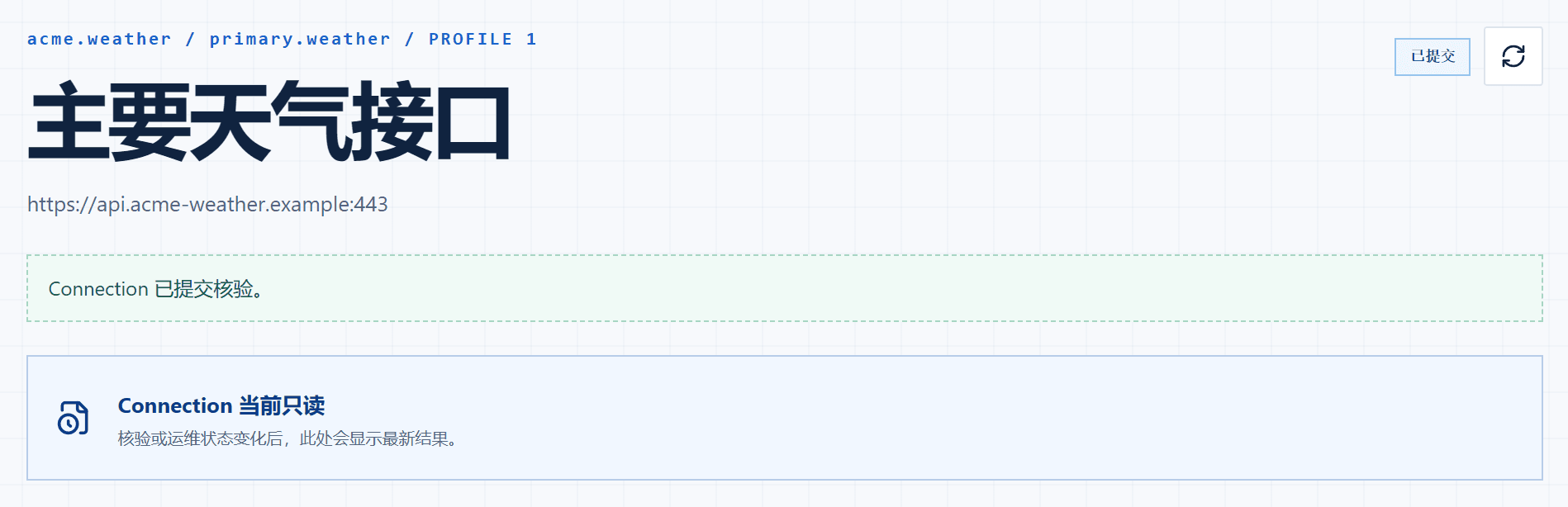
A connection whose conformance check is not fully green will not be approved. This step makes no business judgement — it only looks at the technical contract.
6. Create the listing and submit it for review
Fill in the listing identifier, display name, price and service description.
The price you enter is the total the caller sees. You do not enter your share or the platform's — the split is computed from the fee policy in force at publication and frozen into that publication's snapshot.
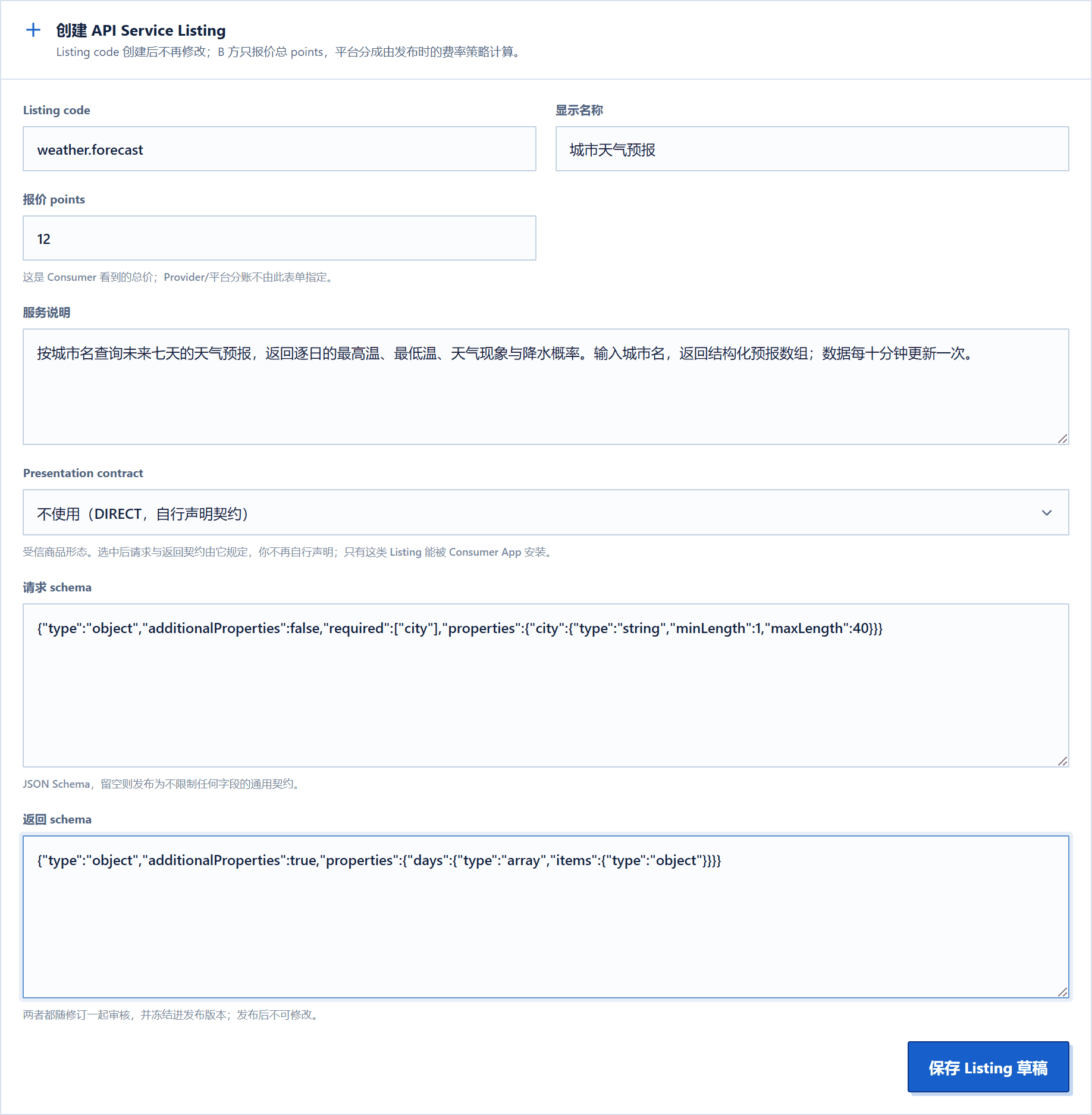
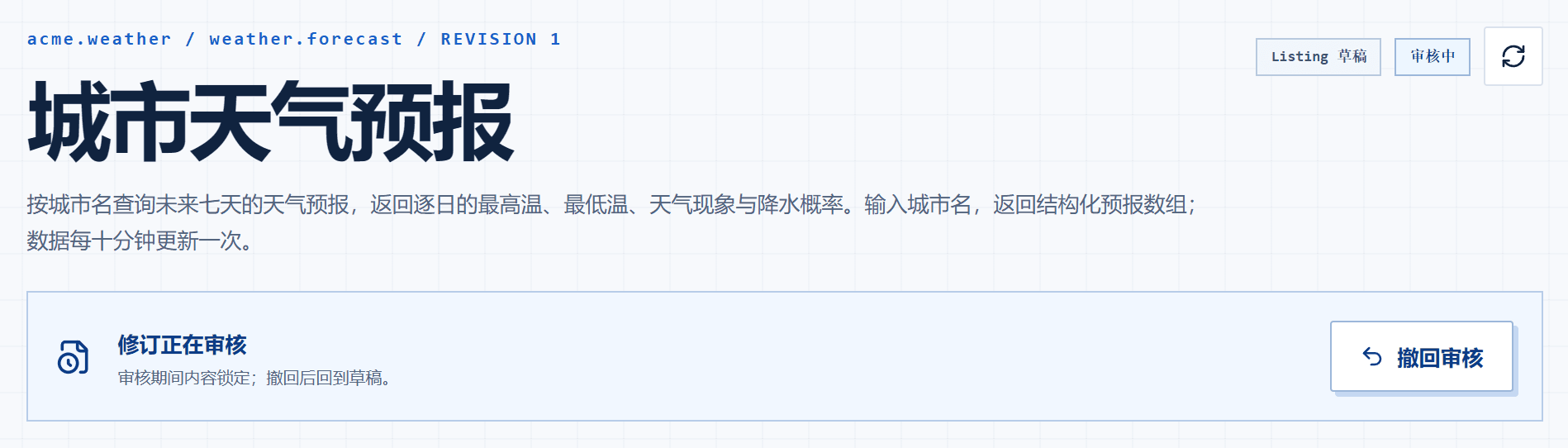
Content locks on submission; withdrawing returns it to draft.
| State after submitting | Under review |
| Next | Wait for the content judgement |
7. Wait for the listing review
This step is a business judgement, not a technical check — the technical half was done in steps 4 and 5. It weighs whether your service description is consistent with what the entity claims, and whether the price is proportionate to the capability.
| State once approved | Approved, with public versions still at zero |
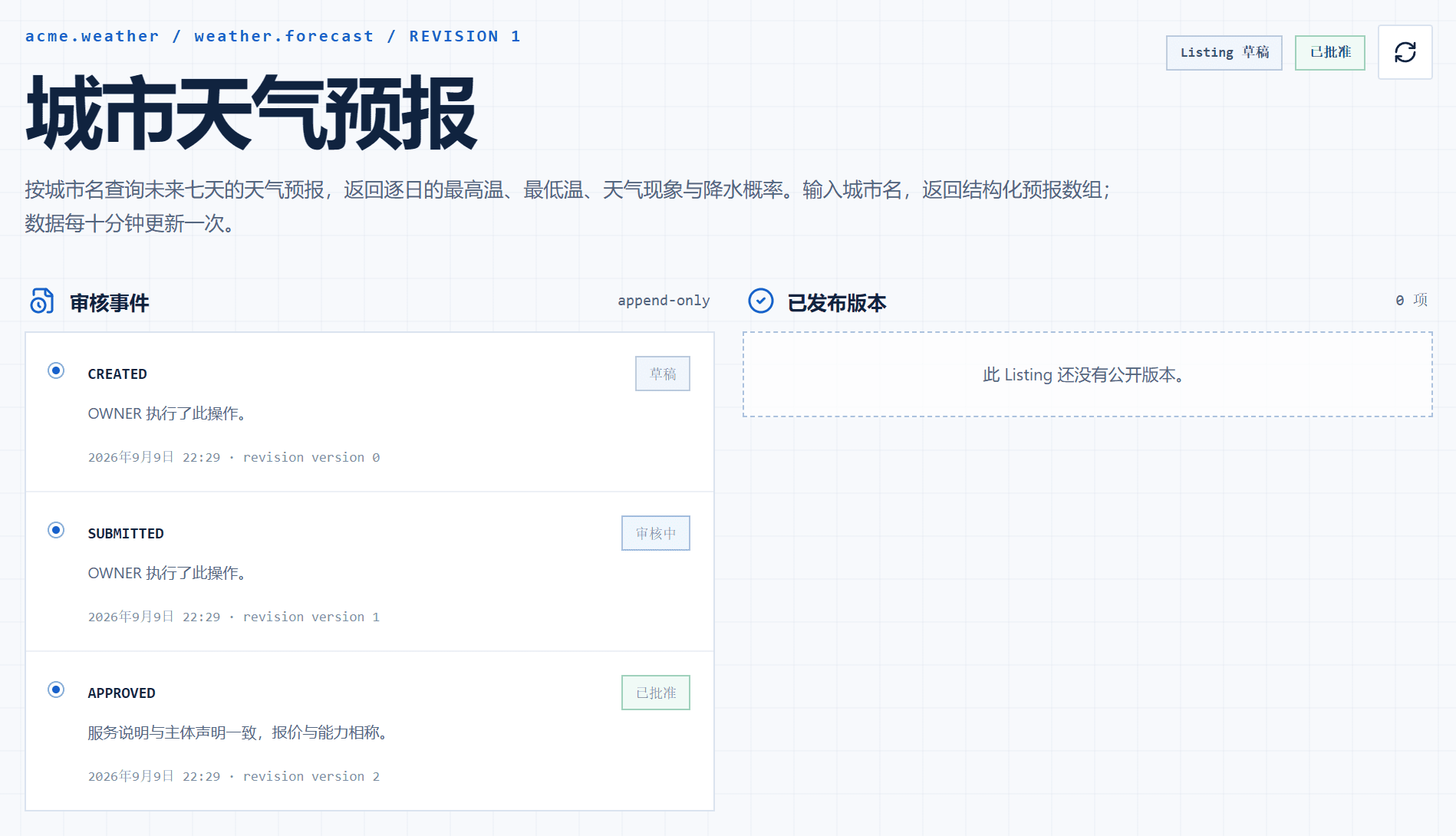
Seeing "approved" while the catalog still does not show your service is normal. One step remains.
8. Wait for publication
After approval the platform creates an immutable publication. The adapter, your price, the platform fee rate at that moment and the bound connection are all frozen into that version's snapshot.
| State after publication | Published |
| Result | The service appears in the public catalog and can be called |

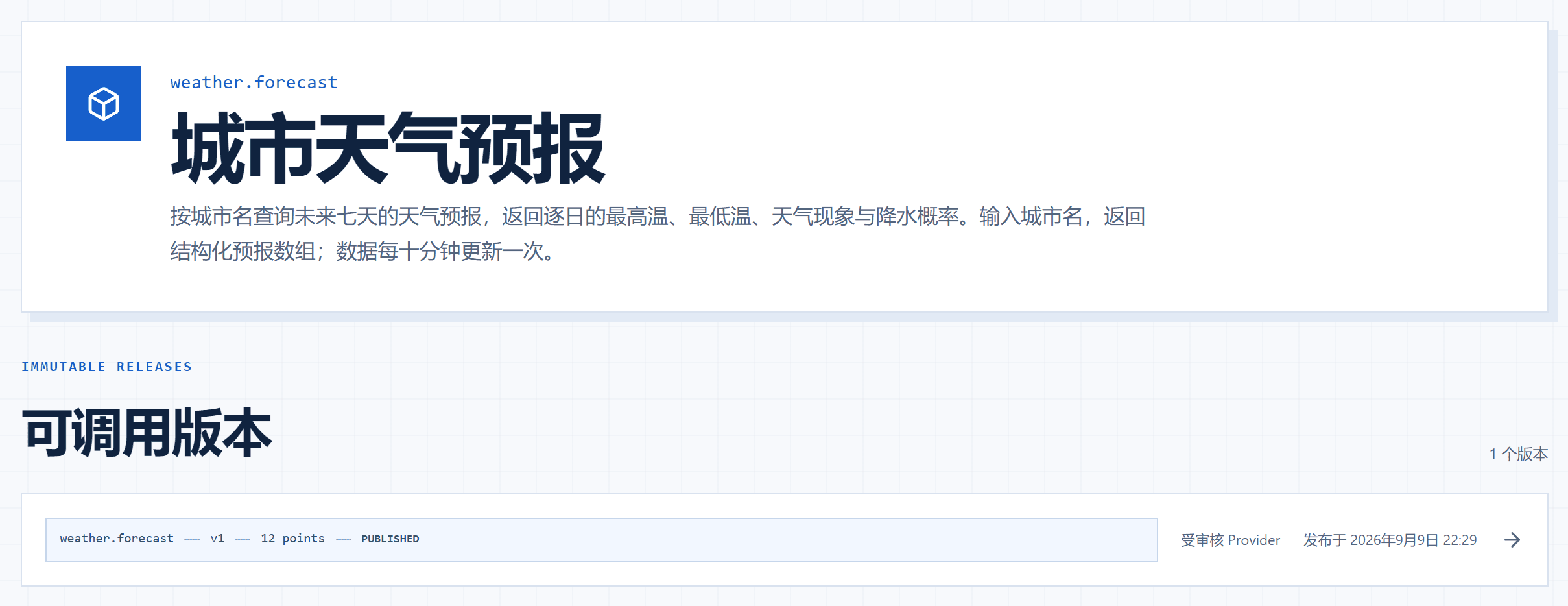
The version number is permanently taken; its content cannot be edited or reclaimed. To change the price or the content, create a new revision and publish a new version; the old one keeps serving its existing callers under the original contract.
The whole chain at a glance
| Stage | Your action | Resulting state | Whose move |
|---|---|---|---|
| Entity | Create and submit | Submitted | Yours |
| Entity | — | Under review | Waiting on the platform |
| Entity | — | Active | Waiting on the platform |
| Connection | Create | Connection draft | Yours |
| Connection | Run the conformance check | No state change | Yours, repeatable |
| Connection | Submit for verification | Submitted → Under verification | Yours, then waiting |
| Connection | — | Ready to publish | Waiting on the platform |
| Listing | Create and submit | Under review | Yours |
| Listing | — | Approved | Waiting on the platform |
| Listing | — | Published | Waiting on the platform |
When something is sent back
Both "changes requested" and rejection carry a reason, shown on that object's own page.
A listing sent back returns to draft; fix it and resubmit along the same path. The same applies to a connection. A rejected entity does not stop you reapplying, but the identifier is not released.
Turnaround currently depends on manual progress. The technical half is automated and you can run it yourself as often as you like — getting all nine green first saves most of the round trips.
For what is not yet possible, see current limitations.